
Exporting a pick-and-place file—also called a Component Placement List (CPL), centroid file, or XYR / .pos file—from your EDA tool without reconciling it against the active BOM variant and assembly drawing is one of the most common causes of NPI assembly holds and reversed polarized parts. A CSV file that imports cleanly into SMT programming software can still shift an entire connector off its pads (if the library origin sat on Pin 1 instead of the package body center), mount diodes and ICs rotated 180°, or populate components marked DNP (Do Not Populate).
While component sourcing and alternate part approvals belong in your PCBA Bill of Materials (BOM), the CPL file governs physical machine coordinates, side assignment, and nozzle rotation. Verifying the CPL before release requires locking a seven-point coordinate contract and running both set-level BOM reconciliation and visual overlay checks.
1. The Seven-Point Coordinate & Orientation Contract
An SMT pick-and-place machine does not interpret schematic symbols; it drives a vacuum nozzle to a numeric (X, Y) offset from the board's fiducial datum and rotates the head by θ degrees relative to the component's carrier-tape pocket orientation. Before exporting placement files (for example, via File → Fabrication Outputs → Component Placement (.pos, .gbr) in KiCad 9.0 or Generates Pick and Place Files in Altium Designer), verify these seven parameters:
| CPL Parameter | What the Export Must Define | Common Engineering Failure Mode | Pre-Release Verification Check |
|---|---|---|---|
| 1. Reference Origin (0,0) | Consistent datum (typically lower-left board outline corner or dedicated Drill/Place File Origin) shared with Gerber/drill files |
Exporting CPL from absolute page origin while Gerbers use auxiliary drill origin shifts every component off the board | Overlay CPL centroids directly onto Top/Bottom Gerber paste layers and verify fiducial coordinates (FID1–FID3) |
| 2. Units & Precision | Explicit mm (recommended, minimum 3–4 decimal places) or mil/inch header |
Unlabeled units or integer rounding shifts 0.35--0.40 mm pitch BGAs and 0201 passives off-center | Confirm maximum (X, Y) values match physical board outline dimensions |
| 3. Centroid Reference Point | Geometric center of the component body (pick surface center of gravity), not Pin 1 | Custom footprints for connectors, shields, or DPAK/SOT parts left with library origin on Pin 1 cause nozzle pick misses or pad offset | Visually inspect asymmetric connectors, inductors, and multi-pin headers on the paste-layer centroid overlay |
4. Board Side (Top / Bottom) |
Unambiguous side flag (Top/Bottom or T/B) or separate side files |
Through-hole or bottom-mounted decouplers accidentally tagged as Top |
Reconcile top/bottom component counts against top/bottom solder-paste layer apertures |
| 5. Bottom-Side X Convention | State whether bottom-side X coordinates are exported viewed from top (through-board) or horizontally mirrored (Negate bottom X) |
Engineer manually negates bottom X in Excel after CAD already mirrored them, flipping the entire bottom side | Check one asymmetric off-center bottom component against the bottom solder-paste Gerber view |
| 6. Rotation (θ in Degrees) | Counterclockwise angle (0°--360°) from library zero-orientation to placed orientation | Library footprint built at 90° or 180° relative to IPC-7351 / EIA-481 tape-pocket standard rotates polarized parts | Cross-check Pin 1 / cathode bars on the Assembly Drawing against actual component footprints |
7. Population Scope & DNP |
Explicit agreement on whether DNP/DNI footprints, fiducials, and test points are omitted from the CPL or flagged in a status column |
CAD exports unpopulated footprints into the CPL because Exclude from position files or DNP filter was left unchecked |
Run set reconciliation between flattened BOM Fit designators and CPL designators |
2. Worked Reconciliation Exercise: Catching Three Classic CPL Errors
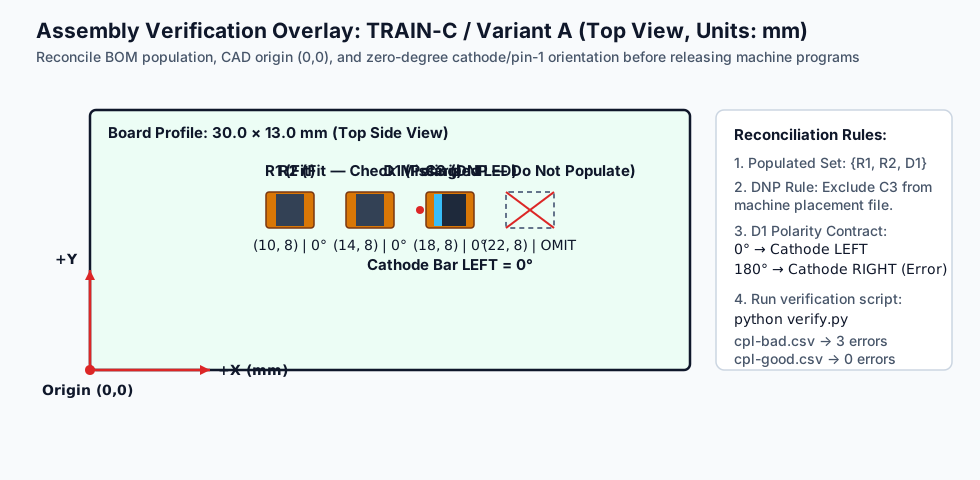
To see how automated set checks combine with visual polarity verification, download our self-contained reconciliation package for board TRAIN-C / Variant A (30.0 × 13.0 mm, top-side SMT only, origin at bottom-left, DNP parts excluded from the CPL, and diode D1 defined with its cathode bar on the LEFT at 0°):
- Downloadable Exercise Files: bom.csv, cpl-bad.csv, cpl-good.csv, assembly-drawing.svg, verify.py, and notes.
Step 1: Compare the BOM Against the Incoming CPL (cpl-bad.csv)
In bom.csv, three SMT parts are marked Fit (R1, R2, D1) and one capacitor is marked DNP (C3). However, inspecting the incoming cpl-bad.csv alongside assembly-drawing.svg reveals three distinct errors that would cause an assembly build failure if left uncorrected:
Discrepancy Found in cpl-bad.csv |
Error Category | Why It Happens in CAD Workflows | Required Fix in cpl-good.csv |
|---|---|---|---|
R2 is completely missing (R1, D1, C3 present) |
Missing Populated Component (missing:R2) |
Footprint accidentally had "Exclude from position files" or "Virtual/Mechanical" checked in library properties | Uncheck exclusion flag in CAD and restore R2 at (14, 8), Top, 0° |
C3 is present at (22, 8), Top, 0° |
Unintended DNP Inclusion (unexpected:C3) |
Designer marked C3 as DNP in a custom schematic text field instead of the native CAD DNP attribute, or forgot to enable "Exclude DNP footprints" during CPL export |
Enable native DNP exclusion filter and remove C3 from the active placement set |
D1 lists Rotation_deg = 180 at (18, 8) |
Reversed Polarity (orientation:D1) |
Footprint cathode bar was drawn on the right at 0° in the symbol library, contradicting the assembly drawing's 0° = Cathode LEFT contract | Align rotation to 0° (cpl-good.csv) and verify physical cathode bar placement against the silkscreen/assembly drawing |
Step 2: Run the Verification Script and Understand Its Scope
Running python verify.py in the asset directory compares both CPL files against the expected population set ({R1, R2, D1}), checks for duplicate designator rows, and validates D1's rotation contract:
{"file": "cpl-bad.csv", "errors": ["missing:R2", "unexpected:C3", "orientation:D1"], "count": 3}
{"file": "cpl-good.csv", "errors": [], "count": 0}
Notice the engineering boundary between set reconciliation and geometric verification:
- A script comparing BOM and CPL spreadsheets will instantly catch missing designators (
R2), unexpected DNP designators (C3), and duplicate rows ( remember to expand grouped BOM rows likeR1, R2, R5into individual designators first, rather than comparing raw spreadsheet row counts). - However, a spreadsheet script cannot know that
180°is backwards forD1unless a human or CAM optical system first establishes the physical orientation rule from the Assembly Drawing, Gerber copper/paste layers, and component datasheet.
3. Why (X, Y) Coordinates Alone Never Establish Orientation
Even when a component's (X, Y) centroid sits dead-center between its two copper pads, a 90° or 180° rotation error is invisible until you compare three independent references:
- The Component Manufacturer's Datasheet & EIA-481 Carrier Tape Standard: Defines how the physical part sits inside the tape pocket relative to the sprocket holes (pick angle 0°).
- The CAD Footprint Library Zero-Orientation (0°): Under IPC-7351, zero-degree orientation can follow Level A (Pin 1 at upper-left for ICs, cathode left for diodes) or Level B (Pin 1 at lower-left); third-party libraries (SnapEDA, Ultra Librarian, SamacSys, or legacy in-house footprints) often mix both conventions on the same board.
- The Assembly Drawing Polarity Markers: Clear, unambiguous visual callouts showing Pin 1 dots, diode cathode bars (
|◀), polarized capacitor+signs, and connector keying notches directly on the component body outline—not hidden underneath the part where post-placement AOI cannot see them.
Rule of Thumb for Spreadsheet Edits: Never globally add +90° or +180° to a column of rotation angles in Excel without knowing how the assembler's SMT programming software (such as Valor, Unicam, Fuji Flexa, or Yamaha YSUP) maps your CAD library's 0° to the feeder tape orientation. Instead, highlight polarized and asymmetric families—diodes, LEDs, tantalum/electrolytic capacitors, BGA/QFN/QFP ICs,SOT-23/SOT-89 packages, and directional sensors/microphones—on the assembly drawing and require a visual First Article Inspection (FAI) overlay sign-off.
4. Diagnosing Systematic CPL Import Anomalies
When the assembler imports your CPL overlay onto your Gerber solder-paste layers during CAM preflight, the visual error pattern immediately points to the root cause:
| Visual Overlay Anomaly in CAM | Root Cause in Export / Import | Correct Fix |
|---|---|---|
| Every component on the board is shifted by the exact same (Δ X, Δ Y) vector | Mismatch between CAD CPL export origin and Gerber/drill export origin | Re-export CPL and Gerbers using the exact same Drill/Place File Origin (or align origins to lower-left board outline corner + FID1) |
| Component positions expand or shrink radially from (0,0) by 25.4× or 0.03937× | Units mismatch (mil vs. mm) or scaling factor applied during import |
Explicitly include unit headers (mm) and re-import at 1:1 scale |
| Top side aligns perfectly, but all Bottom-side components appear mirrored left-to-right | Conflict between CAD Negate bottom X export setting and CAM bottom-view mirror transform |
Confirm whether the CAM system expects unmirrored (top-through-board) or X-mirrored bottom coordinates; toggle once in CAD or CAM, never both |
| Centroids sit on pads for passives, but connectors/inductors sit shifted onto Pin 1 | Library footprint reference point was placed on Pin 1 instead of geometric body center | Move footprint pick-origin to package body center (or have CAM snap pick centroids to pad-group bounding-box centers) |
| One entire IC package family (e.g., all SOIC-8s) appears rotated 90° | Library footprint was drawn vertically at 0° while SMT feeder library expects horizontal 0° | Align package rotation offset in the SMT machine library against the Pin 1 dot on the assembly drawing |
5. Submitting a Synchronized PCBA Release Package
To avoid NPI engineering queries and prevent component polarity or variant errors, bundle the following synchronized files in your PCB assembly or turnkey assembly RFQ (and cross-check sourcing details with our BOM error-checking guide):
- Centroid / Pick-and-Place File (
.csvor.pos) or IntelligentODB++/IPC-2581Archive: ContainingDesignator,Mid X (mm),Mid Y (mm),Layer/Side (Top/Bottom),Rotation (deg),Package/Footprint, andComment/Value. - Synchronized BOM with Explicit Variant &
DNPColumn: Ensuring every SMT component markedFitin the BOM appears exactly once in the CPL, and everyDNPcomponent is clearly flagged. - Color PDF Assembly Drawings (Top & Bottom Views): Showing reference designators, component outlines, Pin 1 dots, diode cathode bars, and the (0,0) coordinate origin.
- Gerber Solder Paste & Copper Layers (
GTP/GBP,GTL/GBL): Allowing automated CAM centroid-to-paste-pad alignment before stencil cutting and SMT line programming.
HILPCB's SMT assembly and PCB assembly engineering team runs an automated BOM-to-CPL-to-Gerber centroid overlay check on every incoming order—verifying package body centers, Pin 1 / cathode polarity against component datasheets, and DNP exclusions before a single part is mounted, followed by 3D AOI and First Article Inspection (FAI). Upload your Gerber, BOM, and CPL files when you request a quote to get a rapid DFM/DFA review within 2 hours.
Frequently Asked Questions
Why does my CPL have fewer rows than my BOM's total component quantity?
First, check whether your BOM groups multiple reference designators into a single line item (e.g., Qty 4: C1, C2, C3, C4 is 1 BOM row but 4 CPL rows). Second, expand the BOM into individual designators and subtract intentionally excluded items: DNP (Do Not Populate) parts, mechanical hardware (screws, standoffs, heatsinks), bare-board features (fiducials, test points, mounting holes), or manually soldered wire harnesses that are not placed by the automated SMT pick-and-place machine.
Should I include DNP (Do Not Populate) components in the pick-and-place file?
Either convention works if it is consistent and explicit, though omitting DNP components from the machine placement file (or exporting a dedicated Fitted / DNP status column that matches the BOM 100%) is safest. The worst error is marking a part DNP in a free-text BOM note while leaving it as a normal populated row in the CPL with no DNP flag.
What is the difference between a footprint's Pin 1 origin and its pick-and-place centroid?
In CAD library creation, engineers sometimes place the (0,0) coordinate origin on Pin 1 to make pad layout math easier. However, an SMT pick-and-place vacuum nozzle must pick the component at its geometric body center (center of gravity) so the part does not tilt or drop during high-speed travel. Modern EDA tools (like KiCad and Altium) calculate the center of the courtyard/pads or use a dedicated Component Center attribute for CPL export—always verify this on asymmetric connectors and inductors.
Does Gerber X3 or ODB++ eliminate the need for a separate CSV pick-and-place file?
Both ODB++, IPC-2581, and Gerber X3 embed component centroid, outline, Pin 1, and BOM attribute metadata directly inside the fabrication/assembly dataset, which dramatically reduces origin and mirroring mismatches. Even when using ODB++ or IPC-2581, however, you should still provide a controlled BOM (with approved MPNs and DNP variant flags) and a visual PDF assembly drawing to confirm diode/IC polarity during First Article Inspection.